Folder Structure Overview
Learn how content is organized in the Author-it Library using folders. This section explains folder types, their purpose, and best practices for managing objects.
Folders help authors and designers organize content within the library.
- Names and hierarchy are fully customizable.
- Users can create as many folders as their team requires.
- The structure can evolve over time without disrupting existing relationships.
Recommended Folder Structure
Author-it follows a three-tier folder organization model. Each tier supports different workflows and security needs.
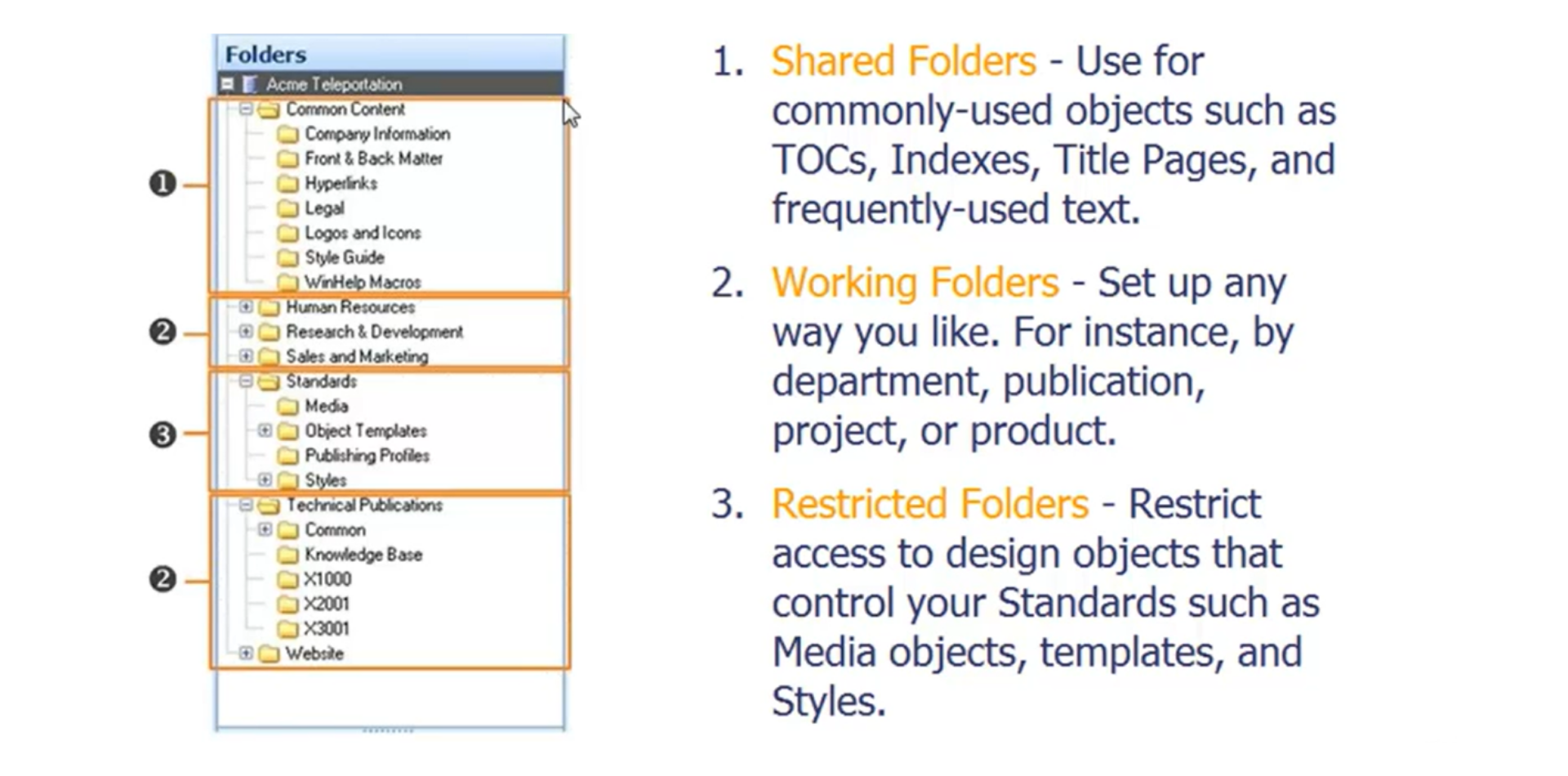
Figure 5: Quick view of the folder structure model
- Shared Folders (Common Content)
Used for reusable objects that appear across many documents.
Examples:
- Title pages
- Tables of contents
- Copyright notices
- Disclaimers
- Logos
- Common hyperlinks
Security: Typically open. Authors can add, update, or reuse objects freely.
- Working Folders
The main space where authors perform daily work.
- Stores books and topics under development.
- Can be organized by:
- Department (e.g., HR, Technical Publications)
- Product (e.g., X1000, X2000)
- Document type (e.g., User Guide, Admin Guide)
Flexibility: Folders can be renamed or reorganized at any time without affecting book relationships.
- Restricted Folders (Standards Area)
Controlled space for designers and administrators.
Contains objects that enforce consistency:
- Templates
- Media objects (page layout controls)
- Publishing profiles
- Styles
Security: Read-only for authors. Only designers/admins can modify or delete content.
Working with Folders in the Library Interface
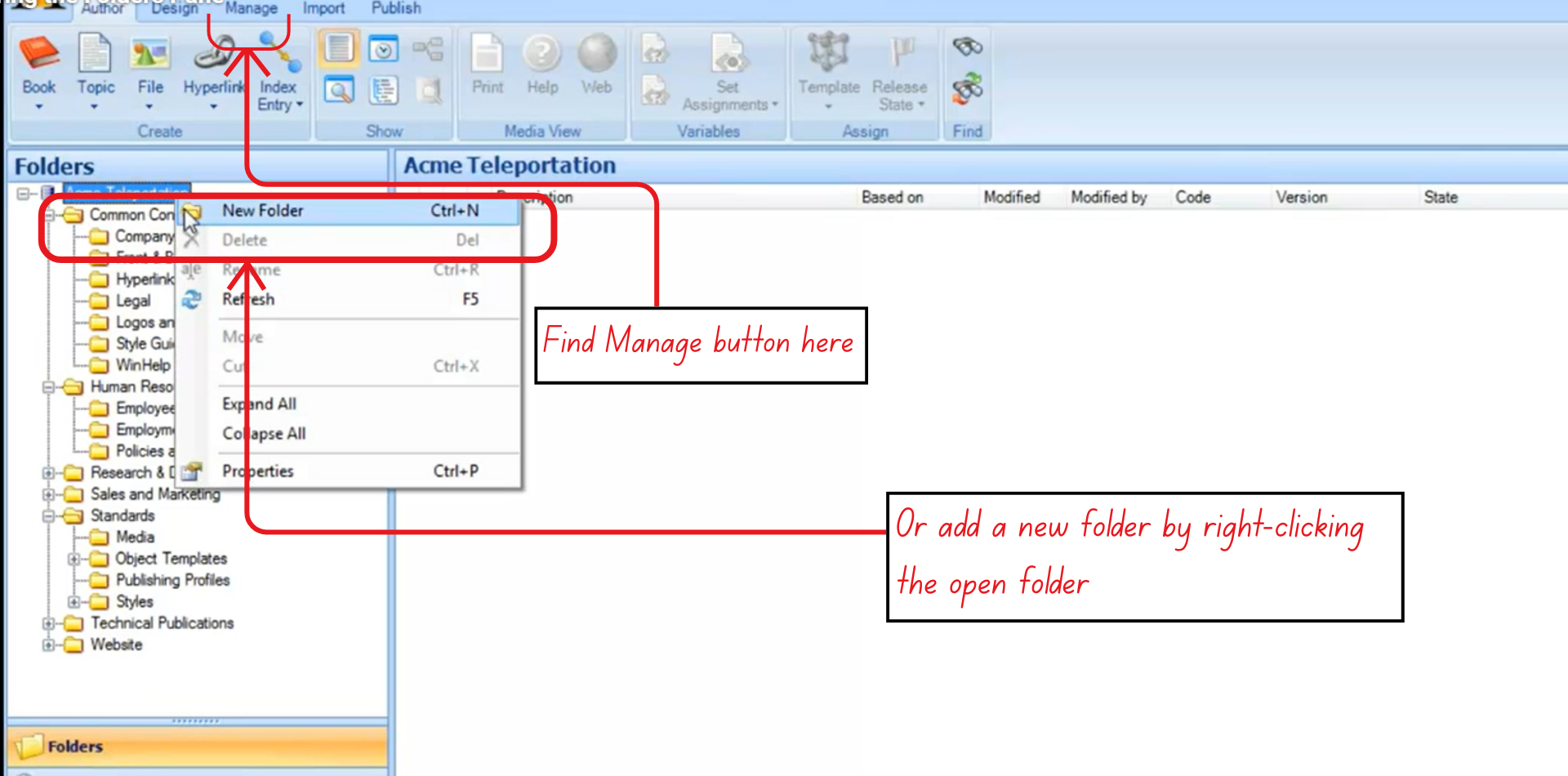
Figure 6: A visual guide to create a new folder
Creating Folders
- Navigate to the left panel and select the open folder.
- Right-click → New Folder, or
- Use the Manage Ribbon.
Moving Objects Between Folders
- Drag and drop objects to change their “home address.”
- Moving an object does not break its connection to books.
Creating Objects Inside a Folder
- The folder selected in the Folders Pane becomes the object's home.
- If the object was created in the wrong folder, simply drag it to the correct one.
“When in doubt, click and drag.”
Drag-and-drop is the most reliable method for organizing content throughout the library.