Searching and Relationships
Learn how to locate content in the Author-it library using the Search Pane and how to analyze object reuse through the Show Relationships report.
Overview
The Search Pane and Relationships view helps find objects in the library and understand where they are being reused. These tools are essential for impact assessment, troubleshooting, and working efficiently in a modular CCMS environment.
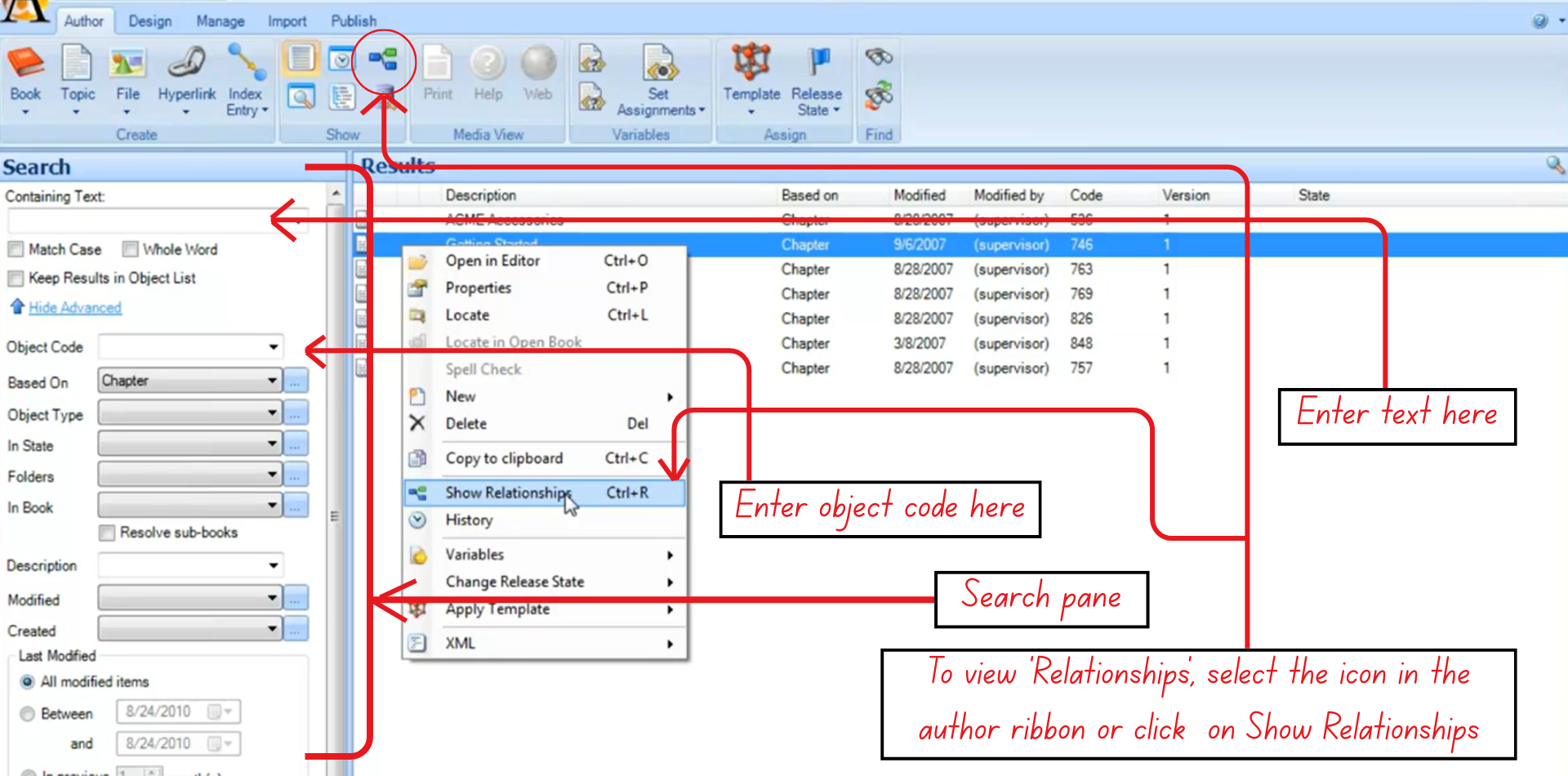
Figure 11: A visual guide to understand the search and relationships functions in Author-it
How to Search for Content
- Search by Text
Use this method to find objects that contain specific words or phrases.
Steps:
- Open the Search Pane.
- Enter a keyword or phrase into the Containing Text field.
- Use Boolean operators if needed:
AND(finds results containing both terms)OR(either term)NOT(exclude a term)
- Press Enter or select Find Now.
Result: A list of all objects containing the specified text appears in the results area.
- Search by Object Code
Use this to locate a specific object quickly.
Steps:
- In the Search Pane, choose Object Code.
- Enter the object’s unique identifier.
- Select Find Now.
Result: The exact object matching the code is displayed, making it easy for team members to reference and locate content consistently.
- Search by Template
Search based on the object template assigned during creation.
Steps:
- Open the Search Pane.
- Select Template as the filter.
- Choose a template (for example, Chapter, Topic, Graphic).
- Select Find Now.
Result: Displays all objects created from that template - useful for identifying which content will be affected when a template is updated.
Viewing Object Relationships
Use this feature to understand where an object is used across the library.
Steps:
- Right-click any object in the Library.
- Select Show Relationships or choose the Relationships icon in the Author Ribbon.
- Review the generated report.
Result: All related books, topics, and other objects that reference the selected object appear in the panel.
Why it matters:
- Shows who depends on the object.
- Helps evaluate the impact of changes (e.g., editing, replacing, or deleting the object).
- Prevents accidental disruptions in multiple publications.